¶ Introduction
The Pricing module is built on a new pricing logic therefore it must be activated in Feature Management.
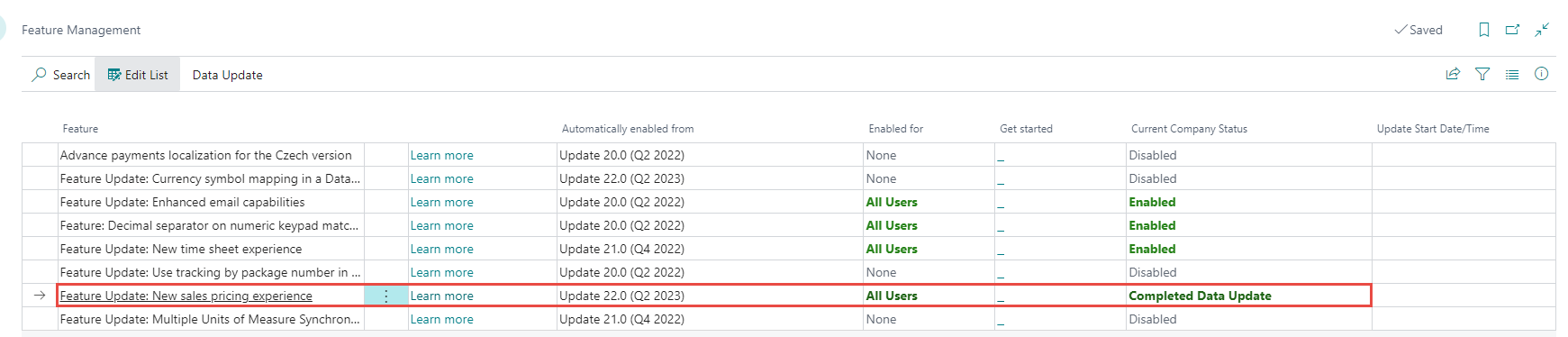
Pricing module settings can be made using wizard or settings can be made sequentially in individual agendas, as described below.
On the Sales & Receivable Setup select Navisys Price Calculation in Price Calculation Method field. Thanks to this setting, sales prices, discounts, and surcharges will be traced according to the logic of Navisys pricing.

Navisys Price Management includes:
- possibility to define surcharges, which are now (according to the settings) calculated either from the price or the price after the discount (original solution in NSS)
- possibility to define discounts/surcharges for item category (including hierarchical search at a higher level)
- setting rules for supervisory prices, discounts, and surcharges
- suppressing the standard feature of finding the best price/discount
- price locking on the sales line - taking over the original solution
- Unit Price After Discount - new field on the sales line.
The rules of the Navisys price management have a higher priority than standard price/discount rules. If price/discount is not found based on these rules, then the search continues according to the standard logic.
The rules state in what order sales prices, discounts, and surcharges will be searched for what types of resource and asset types in BC. If the value of the sales price, discount, or surcharge is found, then the search no longer continues at a lower level.
Example of finding the value of a discount.
In BC, this definition is for sales prices, which have the following defined rules for finding a discount:
The customer listed on the sales order is assigned this rule.
When searching for a discount value for a specified item on a sales order line, BC searches in this order:
- discount defined for the campaign and the given items
- discount defined for the campaign and the item category to which the items listed on the document belong (the value is also searched for hierarchically higher item categories)
- discount for campaign and item discount group
- discount for the campaign
- discount defined for the customer and items
- discount defined for the customer and the item category to which the items listed on the document belong (the value is also searched for hierarchically higher item categories)
- discount for the customer and item discount group
- customer discount
- discount defined for the customer discount group and given items
- discount defined for the customer dicount group and the item category to which the items listed on the document belong (the value is also searched fo hierarchically higher item categories
- discount for the customer discount group and the item discount group
- discount for the customer discount group
- discount defined for all customers and items
- discount defined for all customers and the item category to which the items listed on the document belong (the value is also searched for hierarchically higher item categories)
- discount for all customers and item discount groups
- discount for all customers
If BC finds the first definition of the discount, eg at level 5, then it ** no longer continues to search for the next lower level **. Even if, for example, a higher discount is defined at level 14.

¶ Setting
¶ Sales Price Rules
A new table Sales Price Rules has been created where sales price rules can be set.
On the page Sales Price Rules, which works on the table Sales Price Rules are in the ribbon available the following actions:
- New Creating a new rule
- Init Default Rules Compliance with the rules for prices, discounts, and surcharges by default values
- Show Price Rules View the price rules definition page
- Show Discount Rules View the discount rules definition page
- Show Surcharge Rules View the surcharge rules definition page
Field description on the Sales Price Rules page:
- Code – rule code
- Description – text description of the rule
- Price According – the value in the field determines whether the prices relate to the Bill to Customer or the Customer specified in the sales order.
- Discount According – the value in the field determines whether the discounts apply to the Bill to Customer or the Customer specified in the sales order
- Price Only From Price List – the field takes the Yes / No values. If the value is
No, then if the sales price is not traced from the price lists, the price is taken from the Unit Price field from the item card. If the value isYes, then sales prices are only being traced from price lists, if the price is not found in price lists, the price is not taken from the Unit Price field from the item card.

¶ Sales & Receivables Setup
In Sales & Receivables Setup you can set values in the fields below that affect the calculation of the surcharge value and the default price calculation rule.
These are the fields:
- Price Calculation Method – select Navisys Price Calculation
- Price Rule Code – set the default rule code
- Surcharge Calc. Type – set the method of calculation of the surcharge - whether from the price line or from the price after the discount

¶ Customer
On the customer's card, you can set a rule in the Price Rule Code field, according to which sales prices, discounts, and surcharges will be traced for this customer.
If a rule is set in this field, then the rule specified in Sales & receivables settings is not used for the given customer.

¶ Sales Price List
In the Sales Price List header View Columns for advanced value selection Surcharge.

The following adjustments are made to the sales price list lines:
- in the filed Product Type a value
Item Categoryis added. Price tracking is done in the hierarchical structure of categories downwards. - Defines - it is possible to select the value
Surcharge - Line Surcharge % – the surcharge percentage is only allowed if it is on a line in the field
- Defines - a value of the
Price and DiscountorSurcharge - Maximum Quantity – can only be used for surcharges, the maximum quantity for which the surcharge is valid is defined

Example of tracing a price Product Type = Item Category.
Item Categoriesare configurated as follows:
- For Navisys customers the pricelist is configurated as follows: The price for Item Category is entered here - see Product Type field.
If an item which is included in the product type
Nokiais placed in the line of sales order issued to the Navisys customer, then, for example, the unit price of 5000 will be entered in this line - the price was found from a higher level of the Item Category.
The customer must have a defined price tracking rule for the Product Type Item Category, such as:


¶ Sales Order
These fields are added to the sales order lines:
- Surcharge % – shows the surcharge percentage
- Surcharge Line Amount – shows the surcharge total amount
- Unit Price After Discount – shows the unit price after discounts/surcharges
- Lock Unit Price – unit price lock
A detailed description of the unit price locking functionality is here.
Fields are hidden by default.
¶ View source for price, discount, surcharge
By selecting Line in the ribbon, Functions / Get Price action all prices that are found for the given item and the customer can be displayed

The page shows the prices for the given item and the customer, which were found. Based on the price search priority setting, it is possible to check whether the price listed on the sales order line has been found correctly and what its source is - from which price list.

Similarly, the Get Line Discount action can be used to view discounts for a given item and customer. Based on the setting of the discount search priority setting, it is possible to check whether the discount listed on the sales order line has been found correctly and what its source is - from which price list.

The Get Surcharge action can be also used to open the page to show the surcharge amount for a given item and customer.

Based on the setting of the surcharge search priority setting, it is possible to check on this page whether the surcharge stated on the sales order line has been found correctly and what its source is - from which price list.

¶ Factbox Sales line Details
In the Sales Line Detail factbox, you can click from the field:
- Sales Prices to the page for displaying the retrieved prices for the given customer and items.
- Sales Line Discounts to the page for displaying traced discounts for the given customer and items.
- Sales Line Surcharge to the page for displaying the found surcharges for the given customer and items.
